Set up worksites and jobs
In Jobsite, a worksite is a physical place and a job is the work happening there. Jobs are where schedules, daily logs, RFIs, drawings, and financials live — so this is the first thing to set up.
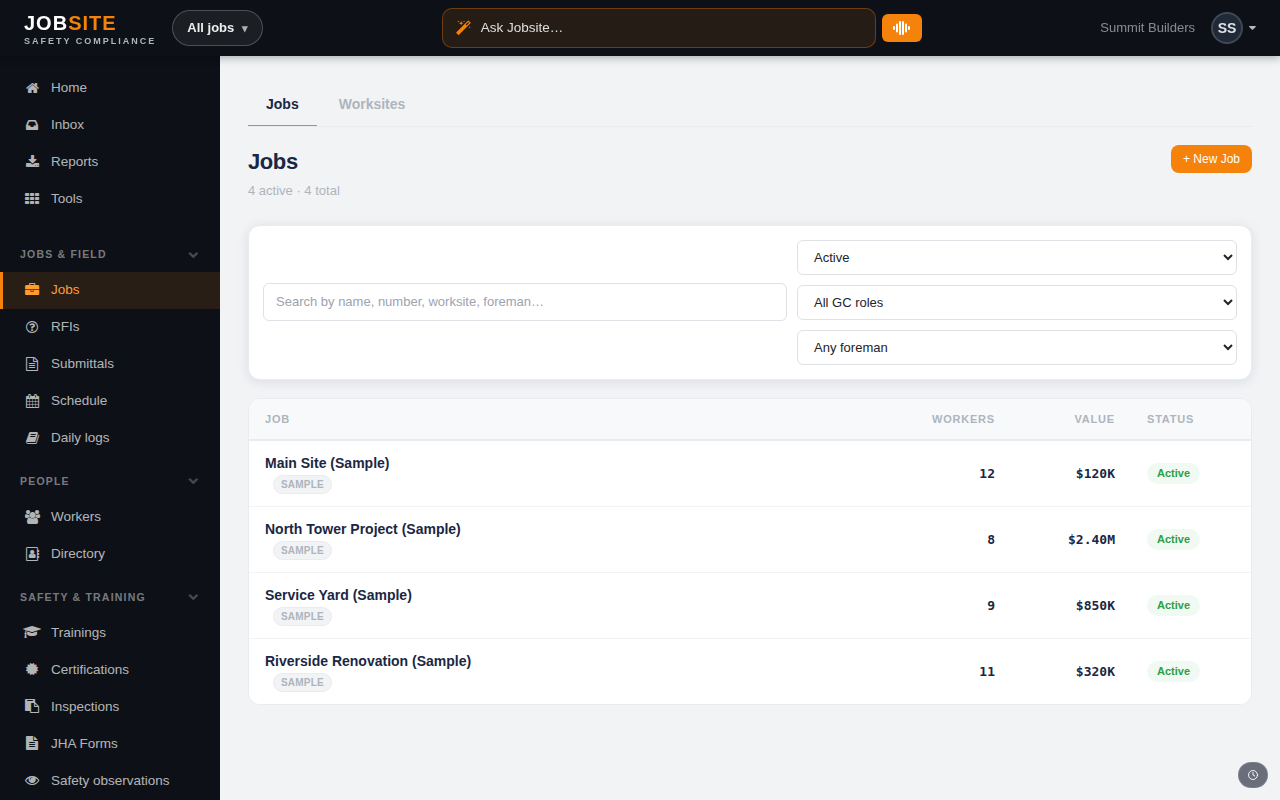
- 1
Create a job
Go to Jobs and choose New job. Give it a name, set its status, and attach (or create) the worksite it happens at. The worksite's location drives jurisdiction-based training requirements automatically.
app.jobsitecerts.com/dashboard/jobs - 2
Open the job to work it
Click into a job to land on its overview, then use the launchpad to jump to that job's schedule, budget, punch, RFIs, daily logs, and photos. Everything you do stays scoped to that job until you switch.
app.jobsitecerts.com/dashboard/jobs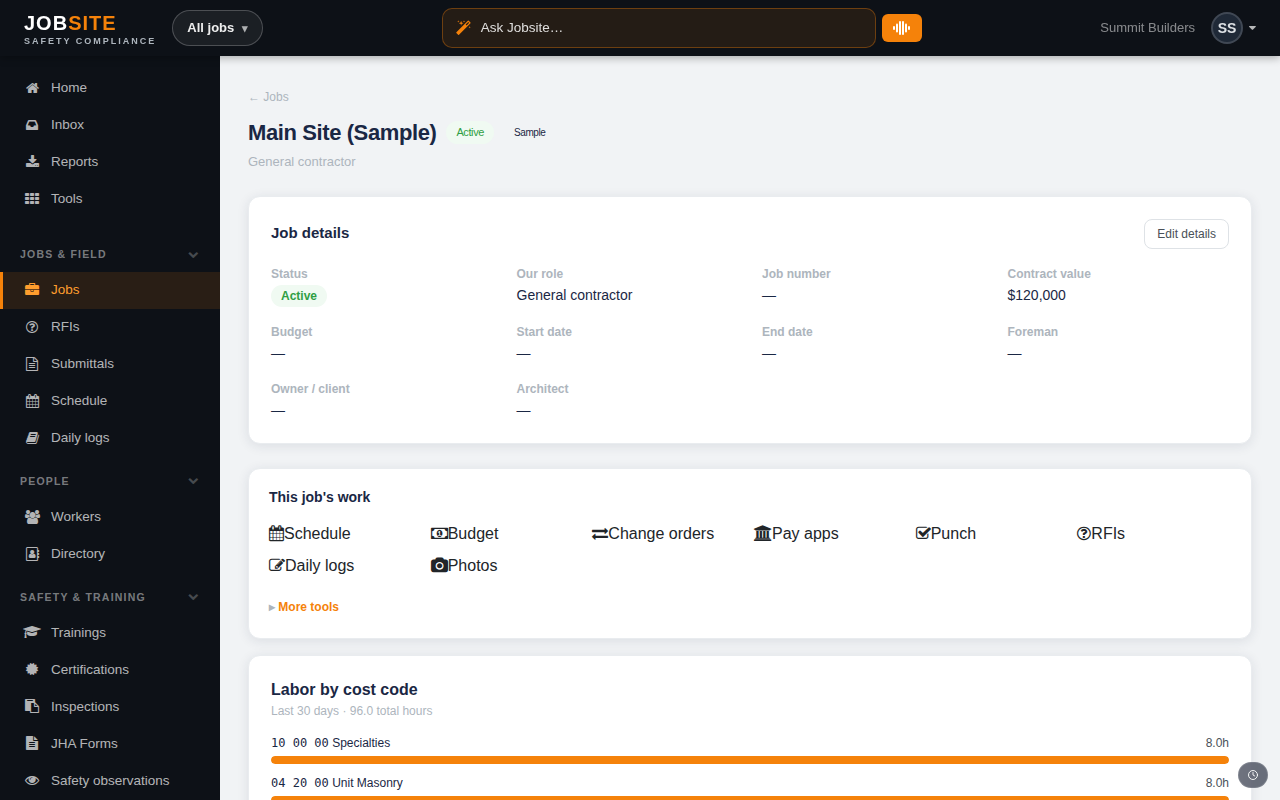
- 3
Move between one job and all jobs
Inside a job, the banner at the top names the job and every tool in the sidebar shows just that job's work. Use Exit to Portfolio to go back to the all-jobs view, or the job switcher in the same banner to jump straight to another job.
Want the bigger picture? See Project management on the platform →