Getting started: your Jobsite workspace
When you first sign in, Jobsite drops you on Home — your Actions Hub. This guide walks the layout so you know where to find things, then points you at the three setup steps that make everything else light up.
- 1
Find your way around
The left sidebar is organized into zones — Jobs & field, People, Safety & training, Records, and Financial. The most-used tools for your role are pinned near the top; everything else lives under Tools or the command palette (press ⌘K / Ctrl-K anywhere to jump to any page).
- 2
Start with Home — your open items
Home rolls up everything that needs a decision from you across all jobs — approvals, RFIs owed, change orders, expiring certs, overdue training, and more — AI-prioritized by urgency. Clear it top to bottom and you're current.
- 3
Do the three setup steps
Add your worksites and jobs, add your crew, and (if you train in Jobsite) set your training rules. Once those exist, compliance, schedules, and reports populate themselves from real data. Each has its own guide below.
- 4
Ask when you're stuck
The Ask Jobsite box at the top of every page answers questions in plain English from your live data — “which certs expire this month?”, “what RFIs are overdue?” It only ever sees what you're allowed to see.
app.jobsitecerts.com/dashboard/ask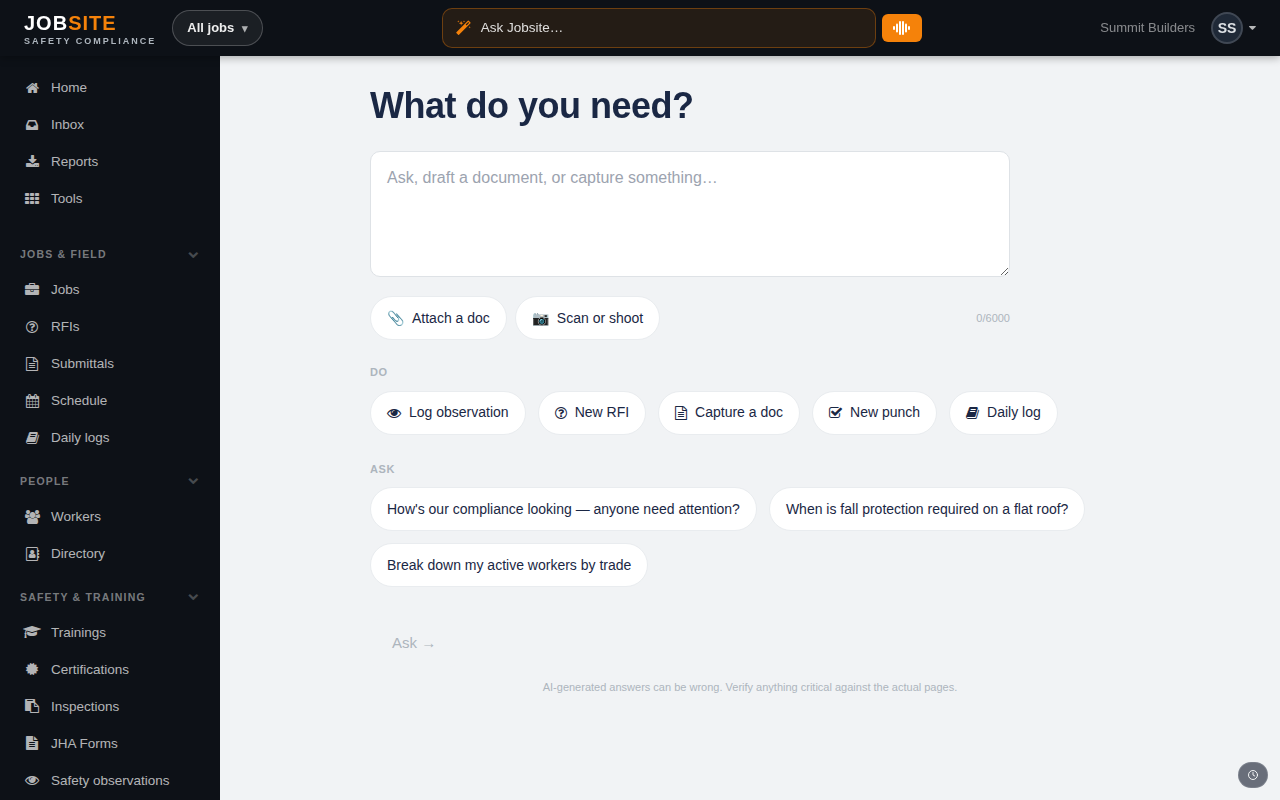
Tips
- Press ⌘K (Mac) or Ctrl-K (Windows) to open the command palette from anywhere.
- You can pin any tool to your sidebar from its page header.
Want the bigger picture? See AI & insights on the platform →